

Please read this entire guide before starting to follow the instructions.
Please ensure you are directly accessing your email by typing in the address and not searching for it on a search engine as this may direct you to the wrong website.
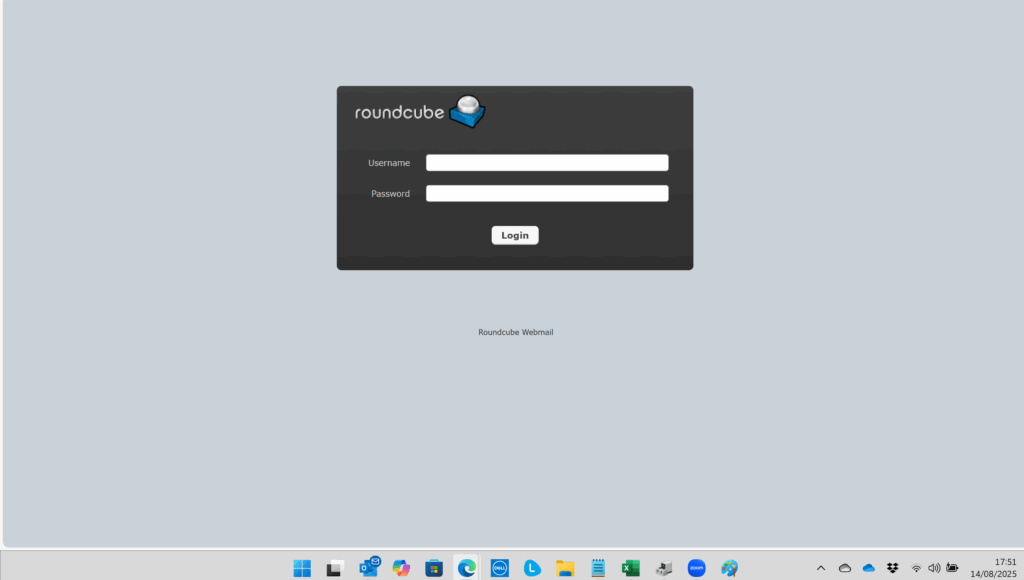
Your personalised webmail site is located at https://webmail.domain.extension for example https://webmail.slashdotdash.co.uk
When prompted, please type in your username (which is your full email address) and then underneath you can enter your password.
If you haven’t already enabled 2-factor authentication then after logging in with your username and password you will be prompted to set up 2-factor authentication. Please don’t ignore it as you won’t be able to access your mail until you do set it up. If you try to navigate away you will be prompted for a password which you don’t have and so will need to close the browser and wait for the session to time-out before trying again (5 minutes).
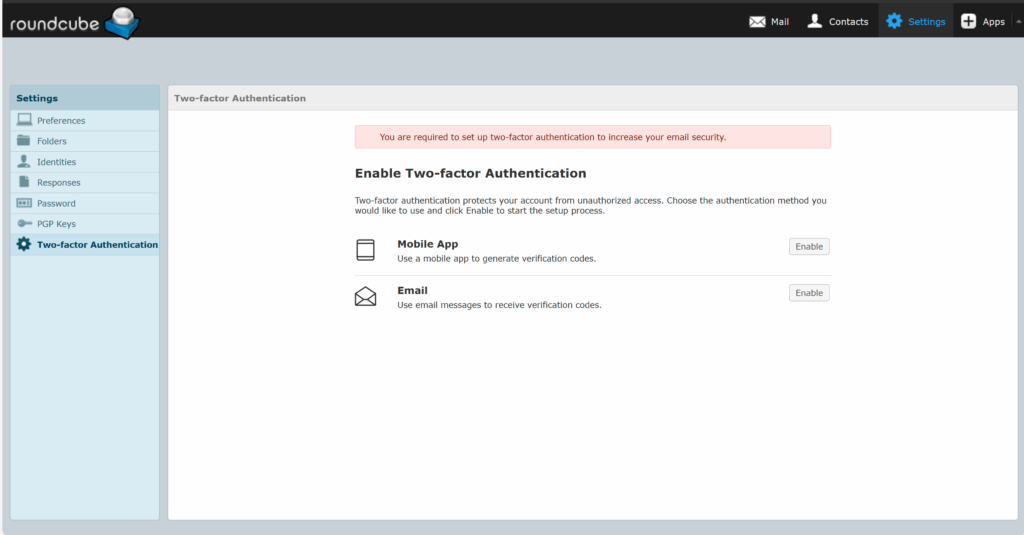
Option 1: Using a Mobile App
Most people are probably used to using a 2-factor authenticator and so will have one installed on their phone. Microsoft and Google have an authenticator which can be downloaded to your smartphone via the app store. If you would prefer to use a tablet device instead you can download an authenticator on that too via the app store.
After selecting Enable you will be prompted for your email account password to continue.
You’ll then get a screen which shows a QR code to scan from your authenticator app
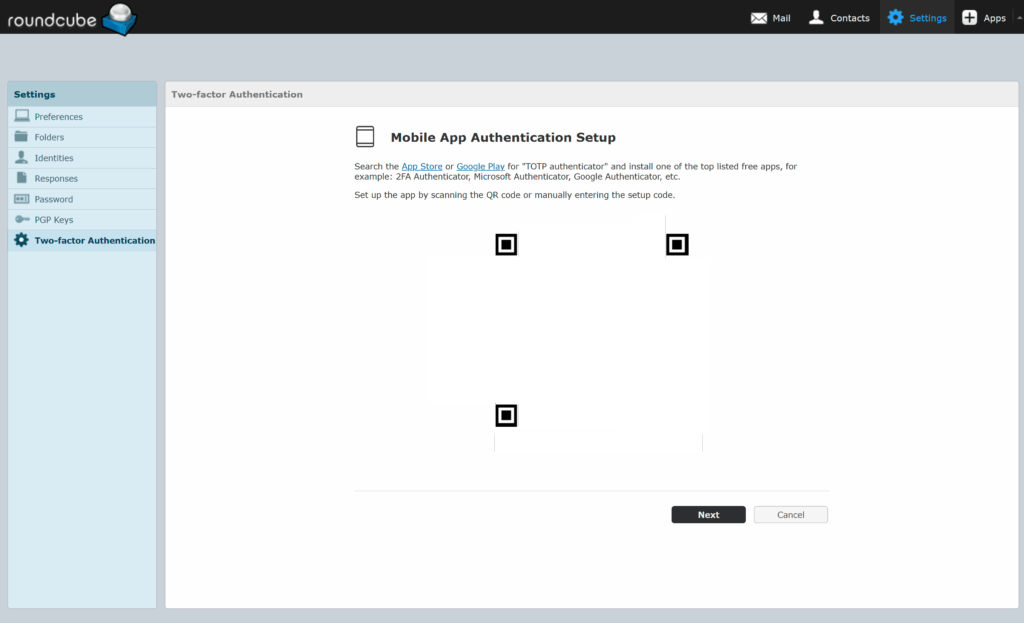
After scanning the QR code with the authenticator app, you’ll notice that your authenticator app will now have a code on it that changes every 30 seconds.
Press Next.
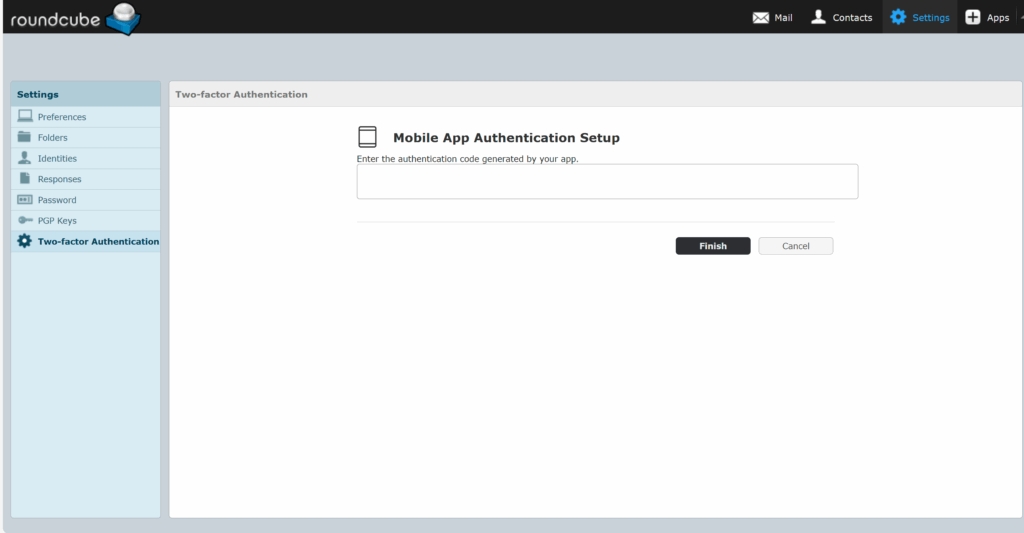
You will be prompted to enter a code from the authenticator app to check it has been set up correctly.
Press Finish.
After successfully setting up the 2-factir authentication you will be given the opportunity to download recovery codes. (Please download, print these and keep them safe). If you lose access to your authenticator you will need these emergency codes to recover your account. Please note that we are unable to generate codes for you and so it is vital you keep these codes safe.
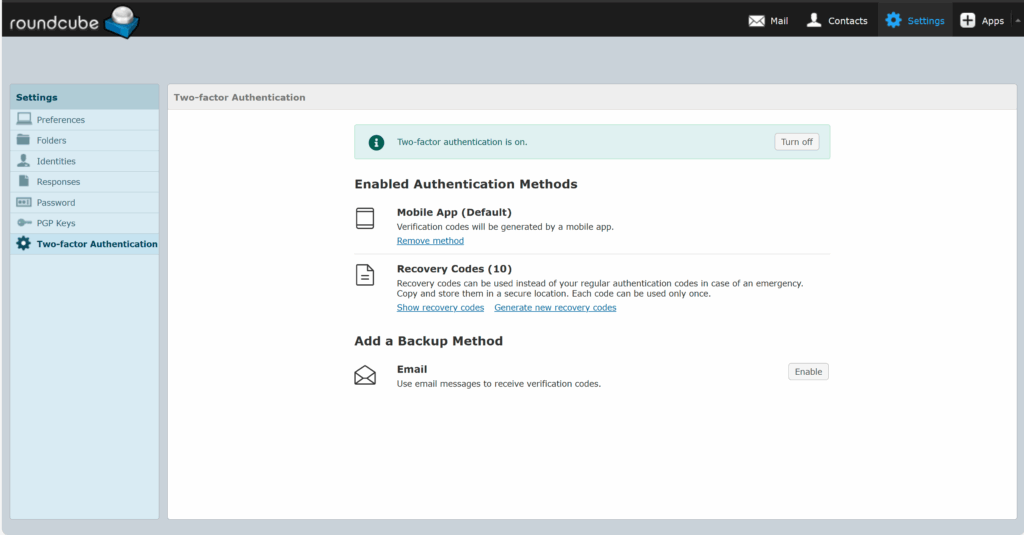
In the future, when logging in to your email account, if you are prompted for an authenticator code please use the code generated on your app.
Note that you will continue to have to use your password. 2-factor authentication adds an additional layer of security and doesn’t replace the security you already have in place.
Option 2: Using email
If you don’t have a smartphone you’ll need to set it up using an email account (don’t use the one you’re logging in to otherwise you’ll lock yourself out).
After selecting Enable you will be prompted for your email account password to continue. (If you have already enabled 2-factor authentication it may not prompt you to re-enter your password)
When prompted to, please enter an email address you have access to. Please note that it may reject some email addresses from domains that haven’t been added to our safelist.
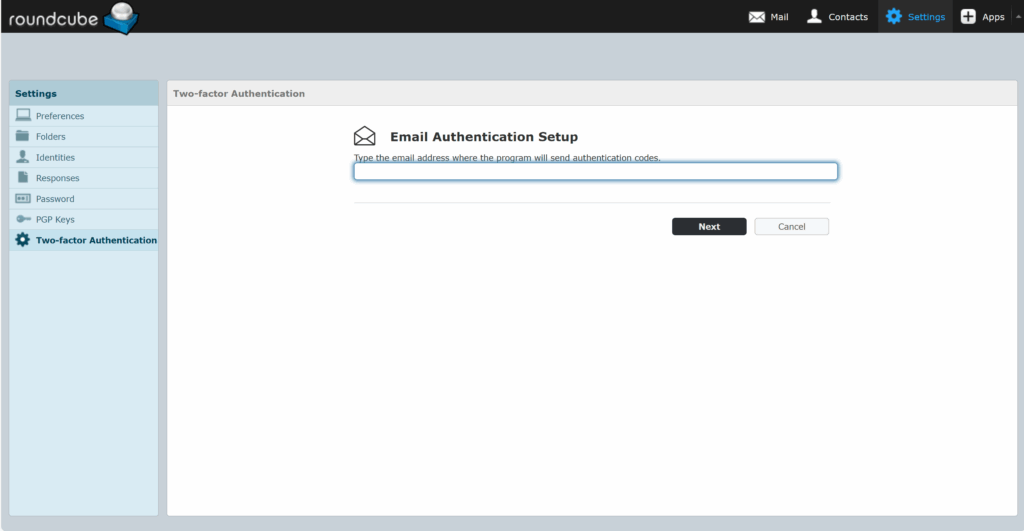
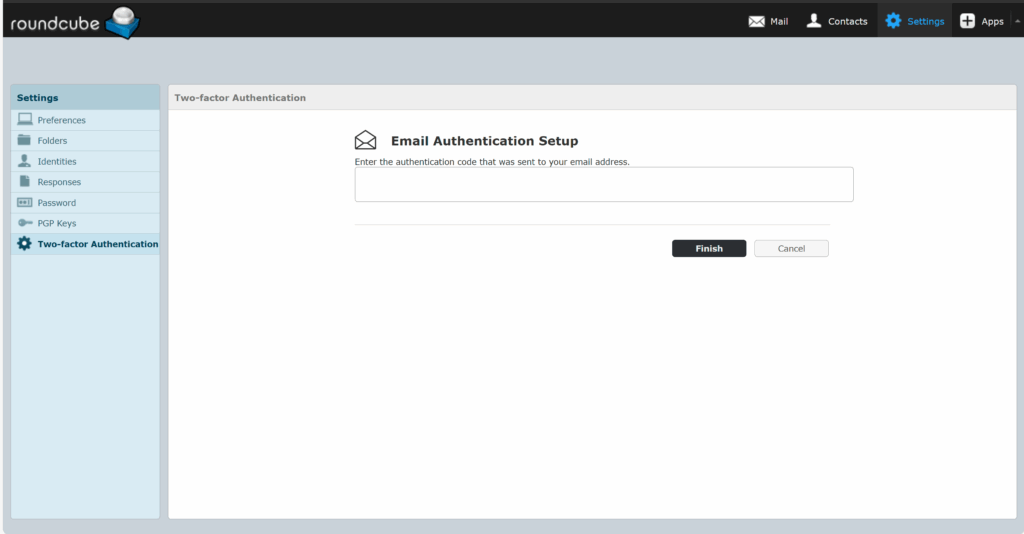
After entering your email address the system will send you an email with a code to enter. (This will verify the 2-factor authentication has been successfully setup.)
Enter the code you have been emailed and selected Finish.
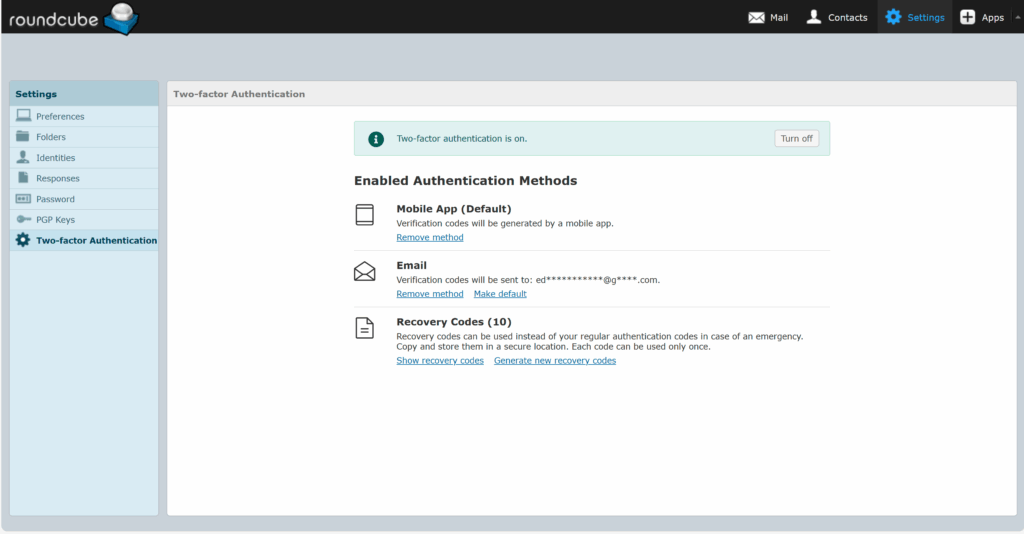
After clicking Finish you will be returned to the Two-factor authentication screen. You have now successfully set up two-factor authentication.
Troubleshooting:
The codes from my app don’t work!
- This is usually caused by your device having the incorrect time set.
- Update your device’s time to use London time zone and correct date & time
- The code wasn’t used within the appropriate time-frame.
- Use a new code
- The window was left open for too long and a new session needs to be started
- Close and relaunch the webmail site
- The password I enter doesn’t work.
- Close the page, wait a few minutes for the session to expire and then relaunch the webmail site.
- Make sure you are entering your email password when prompted and not your two-factor authentication code.
- Launch the webmail site in a private window (incognito mode/private mode etc)


