
As always, this is a guide for you to follow at your own risk. Please ensure you read the whole guide before starting.
- After logging in to IONOS and then selecting your VPS it should open up in CloudPanel.
- On the left hand side is the option to Network > Firewall Policies
- There should already be a configuration in place which allows basic use of the server.
- A firewall limits which ‘ports’ (Communication channels) can be received. Different services use different ports. By default all ports are blocked (Default deny is the most effective security model, with a firewall once it is set up you shouldn’t ever need to change the settings again). To enable a service the port needs to be opened up. The server communicates on the ports using different protocols TCP & UDP. TCP is a protocol that tracks if data got to its destination and resends if it fails, whereas UDP data and hopes for the best.
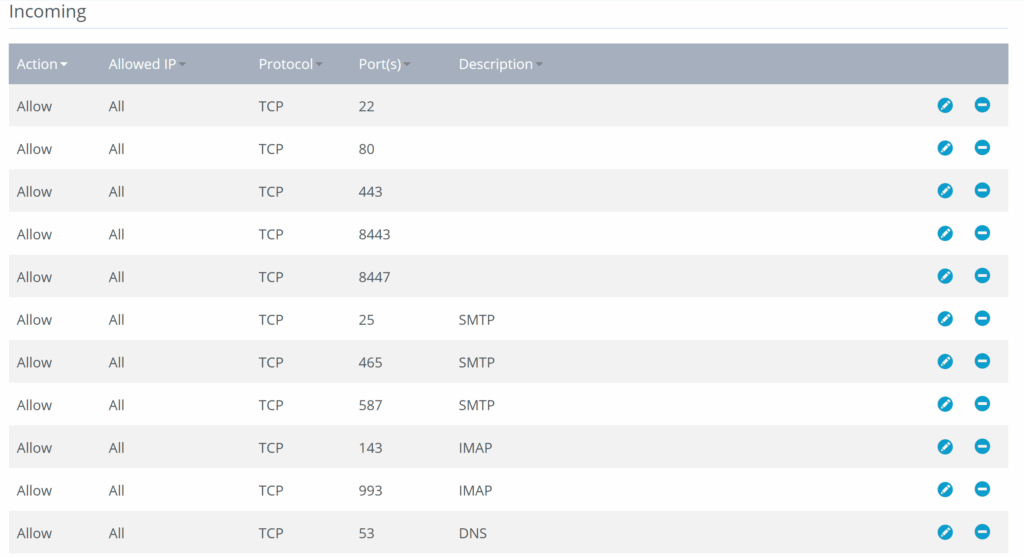
For a server running Plesk and hosting websites you’ll want to open the following ports:
- TCP port 53 allows your server to receive DNS lookup requests
- TCP port 22 allows your server to receive SSH connections (to allow you to send command line instructions to configure the server.
- TCP port 8443 & TCP port 8447 allows you to connect to Plesk via a web-interface (8443 is the main Plesk console, 8447 is the Plesk update console)
- TCP port 80 is for HTTP (insecure web traffic)
- TCP port 443 is for HTTPS (secure web traffic)
For a server hosting email mailboxes and sending/receiving email you’ll need to open up SMTP ports so that email can be sent/received by the server with other servers and IMAP so that you can synchronise your mailbox with a device (e.g. smartphone). Open the following ports:
- TCP port 25 allows SMTP (insecure)
- TCP port 465 allows SMTPS (secure)
- TCP port 587 allows SMTP (alternative port)
- TCP port 143 allows IMAP (insecure)
- TCP port 993 allows IMAP (secure)
There is also the option to open up the POP3 ports however few people use them and so you may prefer to leave it blocked. POP downloads email from server to device which means if you have more than one device mail won’t be synchronised between devices. If you did want to open the ports:
- TCP port 110 allows POP3 (insecure)
- TCP port 995 allows POP3 (secure)
Other ports you may wish to enable (we don’t use them)
- TCP port 21 allows FTP. Note that for secure FTPS and passive FTP there are additional port ranges that need to be opened)
- TCP port 23 allows Telnet (Remote command)
- UDP ports 161 & 162 allows SNMP (allows you to ping the server)
Once you have added all the firewall rules you want you’ll need to apply those settings and then wait (totally normal for it to take a minute or 2 to apply the new settings).